What is a UML activity diagram?
A UML activity diagram shows actions and the control or object flows between them, including decisions and parallel paths. It explains how a workflow progresses.
The question this diagram answers: What actions happen in a workflow, and where does control branch or run in parallel?
Explore all 14 UML diagram types. Interaction diagrams are a specialized subset of UML behavior diagrams.
When to use a activity diagram
Use an activity diagram to discuss a business process, algorithm or use-case flow. It emphasizes work and control or data flow rather than messages between named participants.
Main elements and notation
Action
A rounded action node describes a unit of work. Use a verb phrase such as Validate cart.
Initial and final nodes
A filled circle starts a flow. An activity final ends the activity; a flow final ends only that flow.
Decision and merge
Diamonds separate alternatives or bring alternative paths back together. Put guards such as [valid] on outgoing decision flows.
Fork and join
Bars split and synchronize concurrent flows. A merge does not synchronize parallel work.
Object flow and pins
Object nodes and pins describe data entering or leaving actions. Distinguish data flow from control flow.
Partitions
Swimlanes group actions by responsibility. They do not establish execution order by themselves.
A real example in UXXU
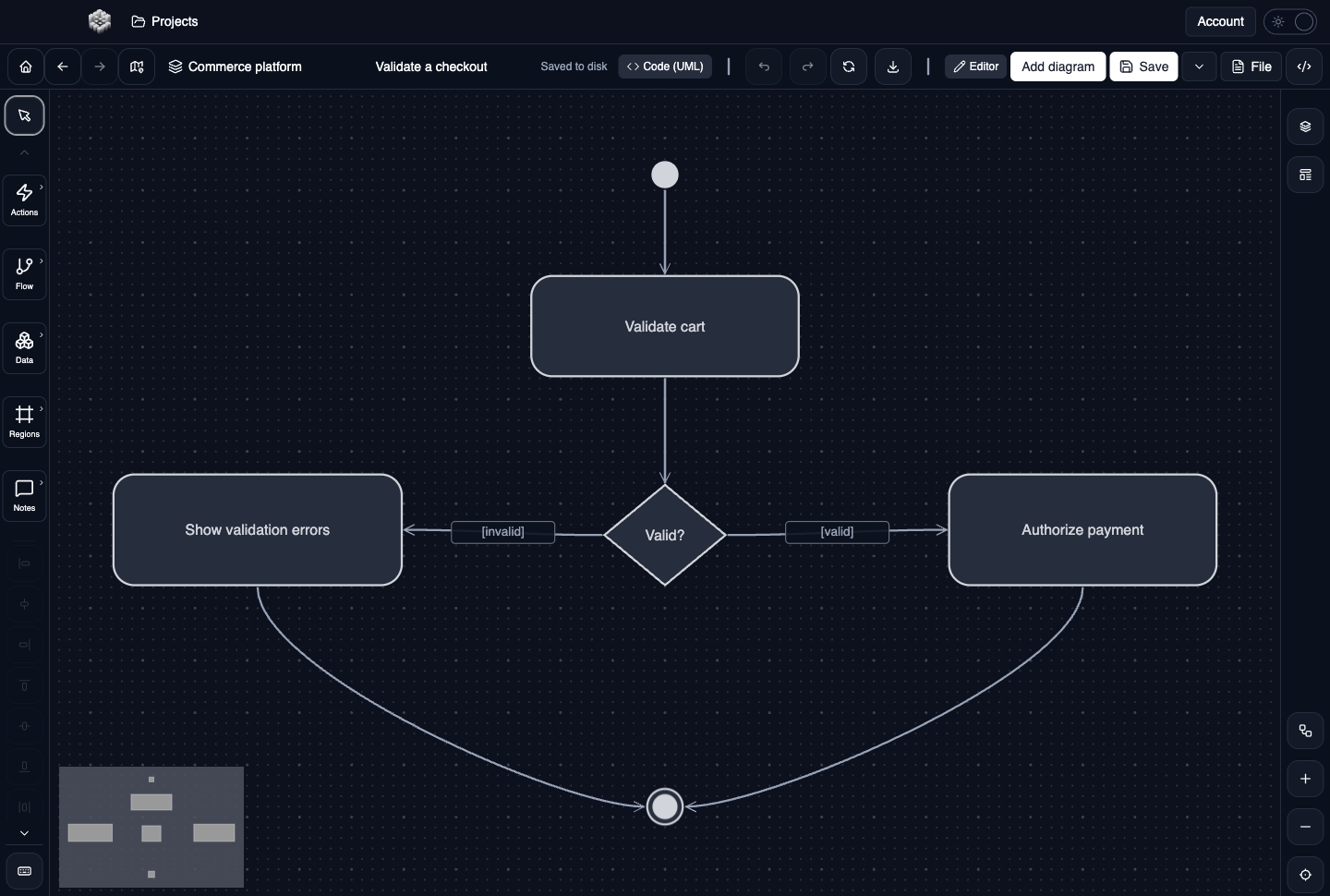
Actual UXXU Desktop screenshot of an illustrative commerce project. Open the full-size example.
The checkout example validates a cart and branches toward payment authorization or a validation error. Start at the initial node, follow the control flow into the decision, and read each guard before following an alternative.
Draw it in UXXU
Open an editable project, add a Code (UML) diagram, and choose Activity as its UML diagram type.
- Add an initial node and the main actions for a single workflow.
- Connect the actions with control flows.
- Add the decision, its outgoing guards and the appropriate final nodes.
- Use partitions, forks, joins or object flows only where they clarify responsibility, concurrency or data.
Select an element or connector to edit its properties. Use editable text for advanced notation where appropriate. Move and resize elements to keep labels readable; save your workspace and reopen the diagram to review the result. Editing availability depends on your plan or desktop licence.
Common mistakes and review checks
Do not use a merge to wait for concurrent branches. Check that guards describe distinct alternatives and that the diagram explains the outcome when a condition is not met.
Before sharing, check that names are consistent, connector directions are intentional, and labels do not cover the notation they describe. Ask another reader to answer the question at the top of this guide using only the diagram.
Choose the next view
UXXU focuses on visual authoring. These guides do not imply executable UML models, automatic semantic validation, or shared UML model-element references across diagrams. PlantUML import/export compatibility is separate from visual notation coverage. Check the download page for published desktop releases.
For normative UML definitions, consult the OMG UML 2.5.1 specification.